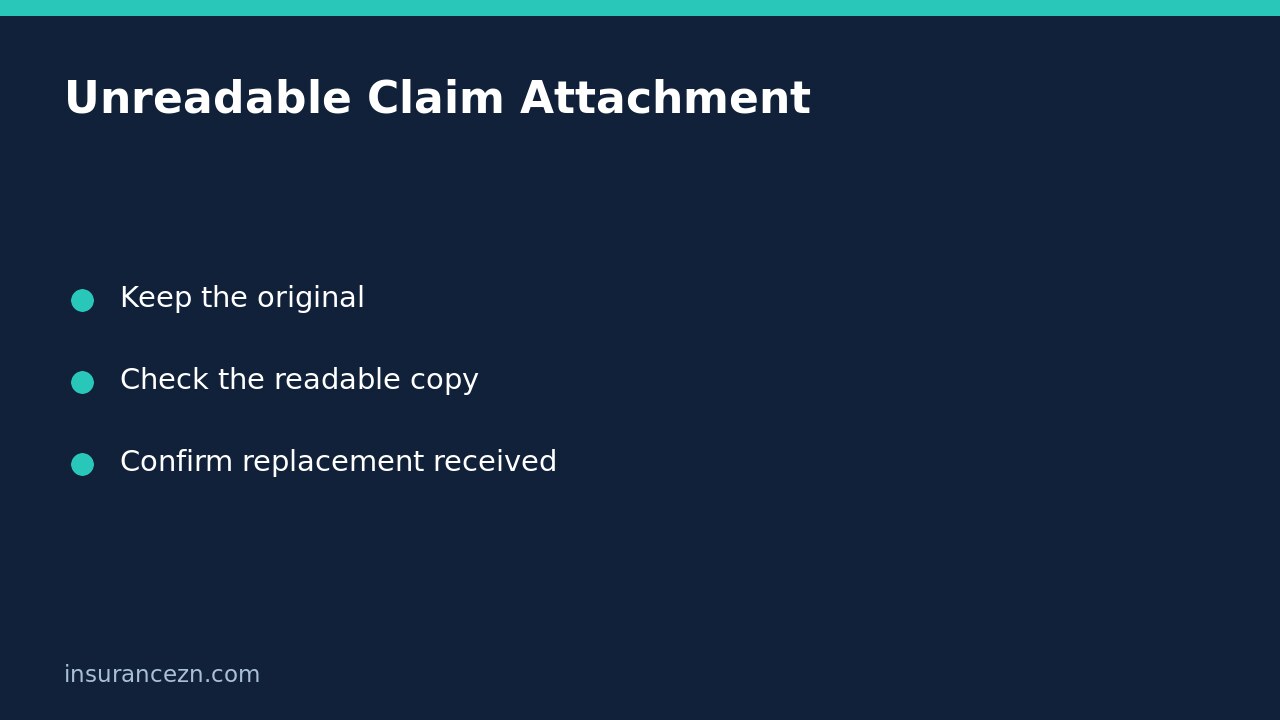

If an Australian insurer says it cannot read a claim attachment, establish what failed before repeatedly sending the same file. The problem might be an unsupported format, incomplete scan, password protection, poor image quality or a file that never finished transferring. Keep the original, prepare a clearly labelled usable copy and ask the handler to confirm that the replacement opens and contains the required detail.
This is general information for Australian readers, not personal financial advice. Your policy, schedule, applicable PDS and insurer’s evidence requirements govern the claim. A readable document does not establish coverage, repair authority or payment approval.
Identify the exact failure and accepted channel
Ask which filename is affected and what the recipient sees: an error, an empty document, missing pages or text too blurred to assess. These require different fixes. If an invoice is readable but lacks itemised work, improving its resolution will not supply the missing information; ask the issuer for the required accurate detail.
Use the insurer’s verified portal or published contact channel. As a provider-specific example, AAMI’s claims page describes managing photos and documents through its online claims process and lists eligible products. That is evidence of an available document-management route for eligible claims, not a universal file-format specification. Ask your own handler about accepted formats, size limits and secure alternatives rather than assuming another insurer’s arrangements apply.
Do not send identity papers or sensitive medical records through an unfamiliar public conversion website. If you cannot create an acceptable copy safely, ask the insurer what assisted submission method it offers.
Preserve the original before changing anything
Keep the original email attachment, photograph or supplier PDF in a separate folder. Make a working copy for conversion or rescanning. Do not overwrite the only version, remove pages to meet a size limit without explanation, or edit an invoice’s amounts or descriptions.
A file extension is not a conversion tool. Renaming a photograph from an unfamiliar format to a name ending in .pdf does not create a genuine PDF. Use an appropriate trusted export function if the insurer accepts the resulting format. Where a document has a digital signature, conversion can affect how that signature is verified; ask whether the original signed file is also needed.
If a document is password-protected, agree a secure handling method with the recipient. Do not publish the password or assume it is safe to include it with the file in an ordinary message.
Check the copy as the recipient will see it
Open the actual exported or scanned file, not merely the source document. Examine every page at a useful viewing size. Check that page edges, invoice numbers, dates, totals and supporting descriptions are legible. Ensure pages are in order and nothing important was clipped by a scanner or hidden in a dark photograph.
- Compare the first and final page with the original.
- Check any reverse side containing relevant terms or item details.
- Read small text instead of relying on a thumbnail preview.
- Keep colour where it conveys relevant damage or annotations.
- Clearly identify a part-file if the insurer asks you to split a document.
For example, an electrician’s three-page invoice might appear complete in a phone preview while the exported copy contains only the first page. A careful page-by-page check catches that omission. This is an illustrative workflow, not a claim that every insurer requires a particular scan resolution or document type.
Replace the unusable copy transparently
Give the replacement a descriptive name and explain its relationship to the earlier attachment. A message could say: ‘This readable copy replaces the attachment you reported could not be opened. It contains the same supplier invoice, including all pages. Please confirm that you can open it and identify any remaining information required.’
If the supplier has actually corrected an invoice, say so and retain both versions. Do not describe changed content as an identical conversion. Keep the claim reference, sending date, replacement filename and acknowledgement together.
If the problem is an incorrect finding rather than an unreadable attachment, use our assessor-report factual correction checklist. Making a file readable does not correct an inaccurate statement inside it; keep those requests separate.
Questions before closing the issue
Does an upload acknowledgement prove the document is usable? No. Ask whether the handler can open the replacement and read the relevant pages. A successful transfer is not a review of its contents.
Should I discard the failed attachment? Keep your original and sending record. The recipient may need to reconcile versions, and the original may contain information lost in a conversion.
Does replacing the file extend a deadline? Do not assume so. Explain the technical problem promptly, ask what action remains due and request any extension explicitly. Confirm the response rather than treating the upload itself as agreement.